
介绍
This manual provides essential instructions for the safe and efficient use of your Epson EcoTank L3150 multifunction printer. Please read this manual thoroughly before using the product and keep it for future reference. The Epson EcoTank L3150 is designed for home use, offering print, scan, and copy functionalities with integrated ink tanks and Wi-Fi Direct connectivity.
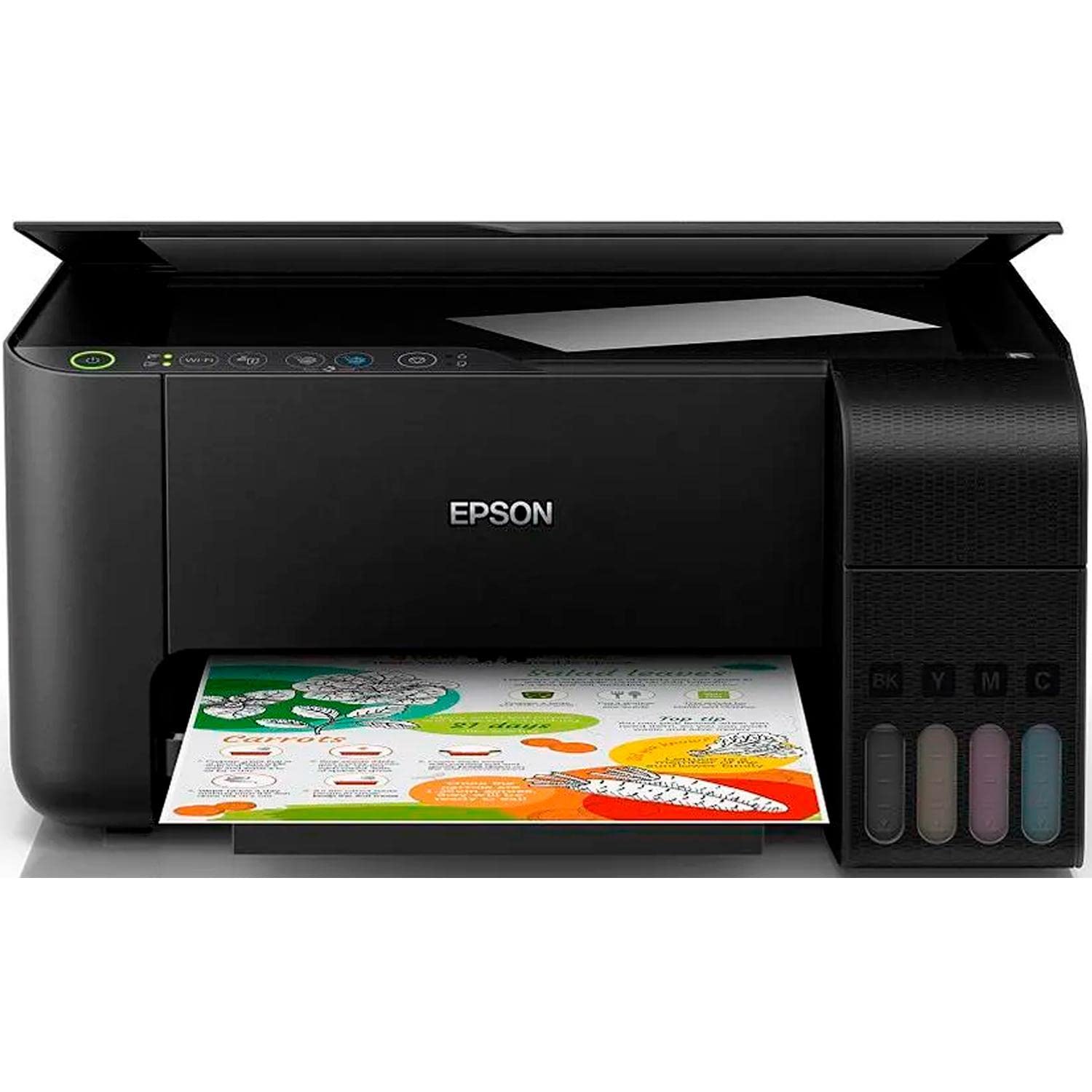
Image: The Epson EcoTank L3150 printer in operation, showing a document being printed from the output tray.
1. 设置
1.1 开箱和摆放
- 小心地从包装中取出打印机和所有配件。
- 撕掉打印机上的所有保护胶带和材料。
- 将打印机放置在平坦、稳定的表面上,周围留出足够的空间,以便通风和操作。
1.2 加注墨水
The EcoTank L3150 uses integrated ink tanks. Follow these steps to fill them:
- 打开打印机侧面的墨盒单元盖。
- Open the cap for each color tank (Black, Yellow, Magenta, Cyan).
- Uncap the corresponding ink bottle and insert it into the correct tank. The bottles are designed to prevent incorrect filling.
- 让墨水流入墨水罐。不要挤压墨水瓶。
- 水箱加满后,取下瓶子并盖紧水箱盖。
- 重复以上步骤,直至所有颜色都用完。
- 关闭墨盒组件盖。
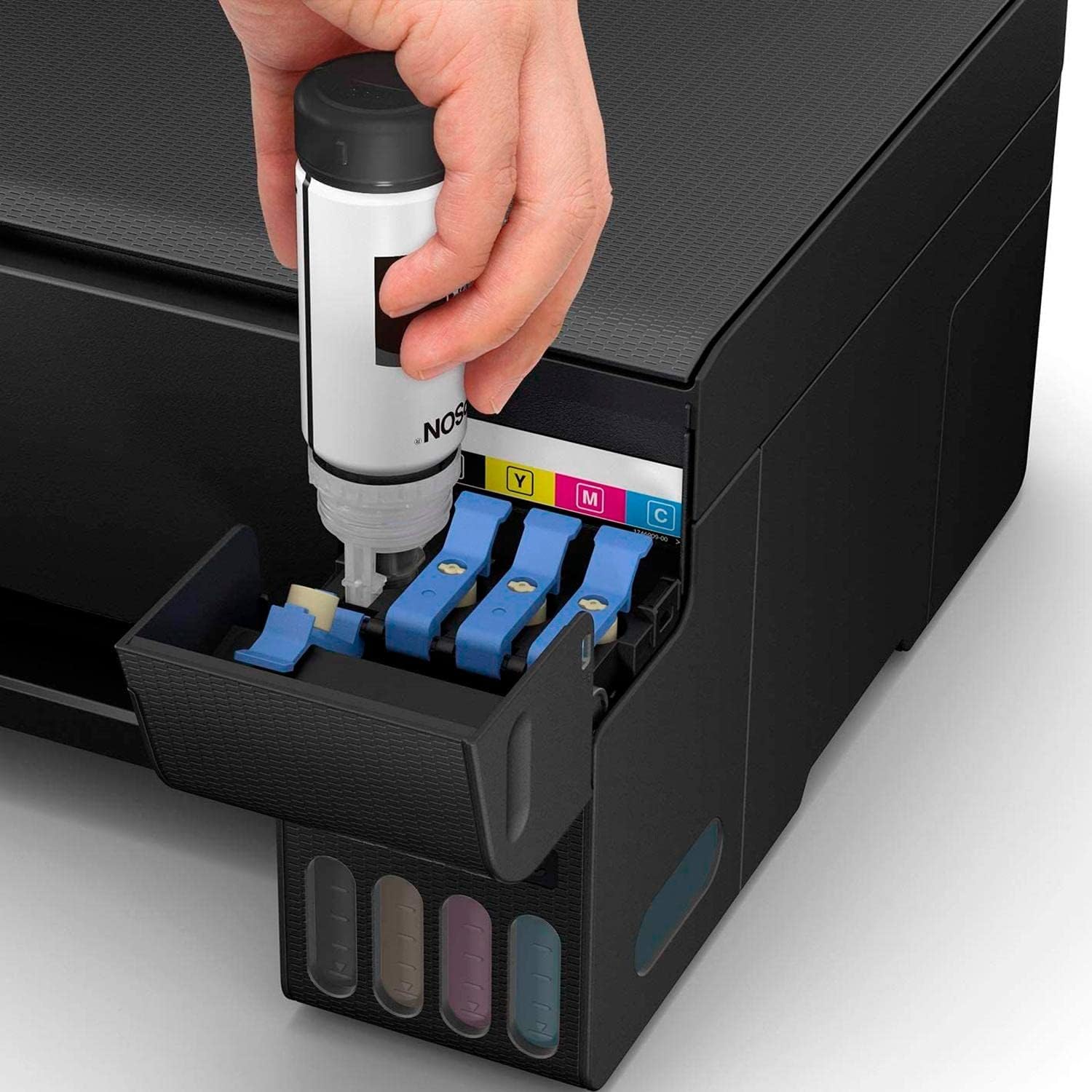
图片:详细 view of the ink refilling process for the Epson EcoTank L3150.
重要的: After filling, you will need to initialize the ink system. Refer to the on-screen instructions during software installation for this process. This typically takes about 10-15 minutes.
1.3 电源连接
- 将电源线连接到打印机的电源输入端,然后再连接到墙上的电源插座。
- 按电源按钮打开打印机。
1.4 软件安装
Insert the provided installation CD into your computer's CD/DVD drive or download the latest drivers and software from the official Epson support website. Follow the on-screen instructions to install the printer drivers and utilities. This process includes setting up the ink levels and cleaning the print heads.
1.5 Wi-Fi Direct Setup
To connect your printer directly to a mobile device or computer without a router:
- Press the Wi-Fi Direct button on the printer's control panel.
- On your mobile device or computer, go to Wi-Fi settings and select the printer's Wi-Fi Direct network (e.g., "DIRECT-xx-EpsonL3150").
- Enter the password displayed on the printer's control panel or printed on the network status sheet.
For standard Wi-Fi network connection, follow the instructions provided by the Epson software installer.
2.操作说明
2.1 装入纸张
- 打开纸张支撑架,拉出延长杆。
- 将边缘导轨滑动到与纸张宽度相同的位置。
- 将纸张打印面朝上装入后部进纸槽。
- 调整边缘导轨使其紧贴纸张。

Image: The Epson EcoTank L3150 with paper loaded, ready for printing.
2.2 从计算机打印
- 打开您想要打印的文档或图像。
- 选择 打印 from the application's File 菜单。
- Choose your Epson L3150 printer.
- 根据需要调整打印设置(纸张尺寸、类型、质量、彩色/灰度)。
- 点击 打印.
2.3 通过移动设备打印(Epson iPrint 应用程序)
Download the Epson iPrint app from your device's app store. Connect your mobile device to the same Wi-Fi network as your printer or use Wi-Fi Direct. The app allows you to print documents and photos, scan directly to your device, and monitor printer status.
2.4 扫描文档
- 提起扫描仪盖板。
- 将文件正面朝下放在扫描仪玻璃板上,并与角标对齐。
- 轻轻合上扫描仪盖。
- On your computer, open the Epson Scan software or use the Epson iPrint app on your mobile device.
- Select scan settings (document type, resolution, destination).
- 点击 扫描.
2.5 复印文件
- Place the document on the scanner glass as described in section 2.4.
- 在打印机的控制面板上,按下 彩色复印 彩色复印按钮或 Black & White Copy 单色打印按钮。
- 要制作多份副本,请反复按按钮,直到达到所需的副本数量。
2.6 Remote Printing (Epson Email Print)
During setup, you can register your printer for Epson Email Print, which assigns a unique email address to your printer. You can then print documents by sending them as attachments to this email address from any location with internet access.
3. 维护
3.1 检查墨水量
The Epson EcoTank L3150 features visible ink tanks on the front, allowing you to visually monitor ink levels. Ensure ink levels do not fall below the minimum line to prevent air from entering the ink system.

图片:正面 view of the Epson EcoTank L3150, highlighting the transparent ink tanks.
3.2 墨水罐的加注
When an ink tank is low, refill it using genuine Epson ink bottles. Refer to section 1.2 for detailed instructions on filling ink tanks. After refilling, you may need to reset the ink levels through the printer software.
3.3 打印头清洁
If print quality declines (e.g., missing lines, faded prints), perform a print head cleaning. This can be done through the Epson printer utility software on your computer. Follow the on-screen prompts.
3.4 喷嘴检查
To check if the print head nozzles are clogged, perform a nozzle check. This prints a pattern that reveals any missing segments. If segments are missing, perform a print head cleaning. This function is also available through the Epson printer utility software.
4。 故障排除
4.1 打印机无响应
- Ensure the printer is powered on and connected to the computer via USB or the correct Wi-Fi network.
- Check for any error messages on the printer's control panel or your computer screen.
- 重启打印机和电脑。
- 请确认已在应用程序的打印对话框中选择正确的打印机。
4.2 打印质量差
- Check ink levels and refill any low tanks (see section 3.1).
- Perform a nozzle check and print head cleaning (see sections 3.3 and 3.4).
- 请确保您使用的是爱普生原装墨水。
- 请确认打印驱动程序中的纸张类型设置与装入的纸张类型相符。
4.3 卡纸
- 关闭打印机并拔下电源线。
- Carefully remove any jammed paper from the paper feed slot or output tray.
- Open the printer cover and remove any paper fragments from inside.
- 合上所有盖子,插上电源线,然后打开打印机。
- 确保纸张装入正确,且无折痕或褶皱。url编辑
4.4 Wi-Fi 连接问题
- 请确保您的打印机在 Wi-Fi 路由器的信号覆盖范围内。
- 重启路由器、打印机和电脑/移动设备。
- Re-run the Wi-Fi setup utility from the Epson software.
- For Wi-Fi Direct, ensure you are connected to the printer's direct network and have entered the correct password.
5. 规格
| 特征 | 细节 |
|---|---|
| 品牌 | 爱普生 |
| 型号名称 | L3150 (IMPEPS3310) |
| 技术 | 喷墨 |
| 功能 | Print, Scan, Copy (Multifunction) |
| 连接 | Wi-Fi、Wi-Fi Direct |
| 最大打印速度(彩色) | 每分钟5页 |
| 最大打印速度(单色) | 每分钟20页 |
| 最大打印分辨率 | 5760 x 1440 dpi |
| 扫描仪分辨率 | 1200 dpi |
| 最大纸张尺寸 | A4, 信纸 |
| Duplex Printing/Scanning | Yes (Manual duplex for printing, software-assisted duplex scanning) |
| 产品重量 | 5.6 公斤 |
| 墨水类型 | EcoTank (Refillable Ink Tanks) |
6. 保修信息
The Epson EcoTank L3150 printer comes with a warranty provided directly by the manufacturer, Epson. For specific terms, conditions, and duration of your warranty, please refer to the warranty card included with your product or visit the official Epson support web请访问您所在地区的网站。请保留购买凭证以备保修之用。
7. 客户支持
For further assistance, technical support, driver downloads, or to find service centers, please visit the official Epson support website. You can typically find comprehensive FAQs, troubleshooting guides, and contact information for customer service there.
爱普生官方 Web地点: www.epson.com/support