
1. 简介
Thank you for choosing the Baseus 240W Smart Charging Station. This 5-in-1 desktop USB-C charger features a digital LED display and supports PD 3.1 for fast charging of multiple devices, including laptops and smartphones. This manual provides detailed instructions for setup, operation, and maintenance to ensure optimal performance and safety.
2. 包含的内容
请确认您的包裹中所有物品均齐全:
- 1 x Baseus 240W 5-Port Intelligent Fast Charger
- 1 条 240W USB-C 充电线
- 1 x Square Tip DC Adapter
- 2 x Round Tip DC Adaptors
- 1 本用户手册
Video: Unboxing and contents of the Baseus 240W Smart Charging Station.
3. 产品结束view
The Baseus 240W Smart Charging Station is designed for efficiency and versatility, featuring multiple ports and smart functionalities.
3.1 端口配置

图片:正面 view of the Baseus 240W Smart Charging Station, highlighting its 1 DC port, 3 USB-C ports, and 1 USB-A port.
The charging station includes 1 DC port, 3 USB-C ports, and 1 USB-A port, allowing for simultaneous charging of up to 5 devices.
3.2 Intelligent Display and App Control
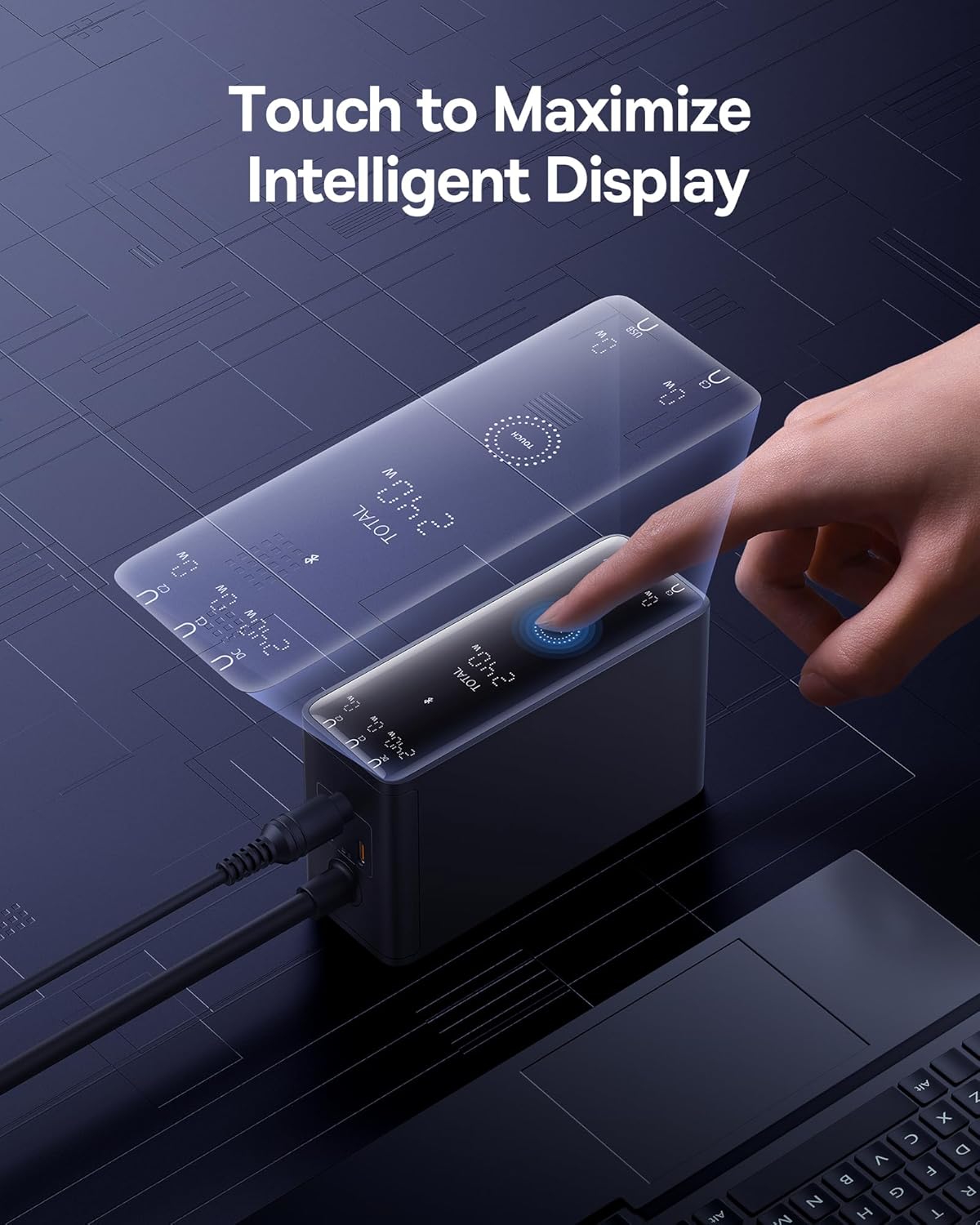
Image: A hand touching the intelligent display of the charging station, showing real-time charging information.
The integrated digital LED display provides real-time charging status. Additionally, the Baseus smart app allows for remote control and monitoring of charging options.

Image: A smartphone displaying the Baseus app interface, demonstrating features like temperature surveillance, maximum output power regulation, charging safety surveillance, and remote control.
3.3 Advanced Cooling Technology

图片:爆炸 view diagram showing the internal cooling technologies: Graphene Cooling Technology, Glue-Fill Technology, and Baseus Cooling Technology (BCT).
The charger incorporates Graphene Cooling Technology, Glue-Fill Technology, and Baseus Cooling Technology (BCT) to ensure efficient heat dissipation and stable performance.
4. 设置说明
Follow these steps to set up your Baseus 240W Smart Charging Station:
- 连接电源: Plug the charging station into a wall outlet using the provided power cable. The digital display will illuminate.
- 连接设备:
- For USB-C devices (laptops, smartphones, tablets): Use the provided 240W USB-C charging cable or other compatible USB-C cables to connect your devices to the USB-C ports.
- For DC-powered laptops: Connect the DC power cord to the charging station. Attach the appropriate square tip or round tip DC adapter to the DC connector, then plug it into your laptop's DC port.
- For USB-A devices: Connect your device using a compatible USB-A cable to the USB-A port.
- 显示器充电: The digital LED display will show the real-time power output for each port and the total power consumption.
Video: Demonstrates connecting a laptop via USB-C, connecting a laptop via DC port using an adapter, and connecting multiple devices simultaneously.
5.操作说明
5.1 应用连接和控制
The Baseus Smart Charging Station can be controlled via the Baseus app for enhanced functionality.
- 安装应用程序: 搜索 and install the "Baseus" app from your device's App Store. Alternatively, scan the QR code provided in the physical user manual.
- 配对设备: Ensure Bluetooth is enabled on your phone. Open the Baseus app, click "Add Device," and select the "BS-GaN240" model. Once successfully added, navigate to "My Devices" on the homepage to access the device page.
- 应用程序功能: 该应用允许您:
- View current total power and device temperature.
- Set countdown timers for power on/off (up to 11 hours and 59 minutes).
- Toggle individual port interfaces on/off. When an interface is turned off, the charger panel will display "OFF."
- Enable "Priority Output" for specific ports to prioritize charging.
- View power and temperature change curves for safety monitoring.
5.2 Device Settings (via App or Touch Button)
You can adjust various settings through the app or directly on the device:
- 电源开/关: In the app, click the power switch button in the top right corner of "My Devices." Alternatively, long-press the Touch button on the charger for 1 second.
- 屏幕开/关: In the app, go to "My Devices" and click on the "Device Screen" button. Alternatively, double-click the Touch button on the charger.
- 儿童锁: In the app, access the settings page (via "My Devices"). Click the button to enable/disable child lock. Alternatively, long-press the Touch button for 5 seconds to disable it.
- 出厂重置: In the app, go to the settings page. Click "Factory Reset" and select "Confirm." Alternatively, long-press the Touch button for 5 seconds.
- Device Unbinding: In the app, go to the settings page. Click "Unbind Device" and select "Confirm."
Video: Demonstrates app connection, setting countdown tasks, enabling priority output, viewing power/temperature curves, toggling screen on/off, enabling/disabling child lock, performing a factory reset, and unbinding the device.
6. 充电场景和功率分配
The Baseus 240W Smart Charging Station intelligently distributes power based on the number and type of connected devices. Below is a general guide to power distribution:

Image: A visual guide illustrating the maximum power output for various charging configurations (single, two, three, four, and five devices) across DC, USB-C, and USB-A ports.
| 设想 | 使用的端口 | 最大输出 |
|---|---|---|
| 单口充电 | 直流输出 | 240W Max |
| USB-C1/C2/C3 输出 | 140W Max | |
| USB-A输出 | 30W Max | |
| 双端口充电 | DC + USB-C1/C2/C3 | 最大 140W + 100W |
| DC + USB-A | 最大 140W + 30W | |
| USB-C1/C2 + USB-C2/C3 | 最大 140W + 100W | |
| USB-C1/C2/C3 + USB-A | 最大 140W + 30W | |
| 三端口充电 | DC + USB-C1/C2 + USB-C2/C3 | 140W + 65W + 30W Max |
| DC + USB-C1/C2/C3 + USB-A | 140W + 65W + 30W Max | |
| USB-C1/C2/C3 + USB-C2/C3 + USB-A | 140W + 65W + 30W Max | |
| 四口充电 | DC + USB-C1 + USB-C2 + USB-C3 | 140W + 60W + 20W + 18W Max |
| DC + USB-C1 + USB-C2 + USB-A | 140W + 60W + 20W + 18W Max | |
| USB-C1 + USB-C2 + USB-C3 + USB-A | 140W + 60W + 20W + 18W Max | |
| Five-Port Charging | DC + USB-C1 + USB-C2 + USB-C3 + USB-A | 140W + 45W + 18W + 18W Max |
7. 安全信息
The Baseus 240W Smart Charging Station is equipped with 9 protective charging protocols to ensure the safety of your devices and the charger:
- 超量tag电子保护
- 过流保护
- 过功率保护
- 静电防护
- 短路保护
- 温度保护
- 低音量tag电子保护
- 抗干扰保护
- Flame-Retardant Housing
Always use the charger in a well-ventilated area and avoid exposing it to extreme temperatures or moisture. Do not attempt to disassemble or repair the device yourself.
8. 规格
| 特征 | 细节 |
|---|---|
| 型号 | CCGAN240CS |
| USB 端口总数 | 5 (3x USB-C, 1x USB-A, 1x DC) |
| 瓦tage | 240 瓦 |
| 连接器类型 | USB C 型 |
| 兼容设备 | Laptops, Smartphones (e.g., MacBook Pro, Dell XPS, Lenovo, iPhone 16, Galaxy S24) |
| 特殊功能 | 140W PD3.1 Fast Charging, Remote App Control, Smart LCD Display |
| 材料 | 塑料 |
| 商品重量 | 2.2 磅 |
| 封装尺寸 | 7.4 x 7.13 x 2.13 英寸 |
9。 故障排除
如果您在使用充电站时遇到问题,请参考以下常见解决方法:
- 无电源/显示屏关闭: Ensure the power cable is securely connected to both the charging station and the wall outlet. Check if the wall outlet is functional. If using the app, ensure the interface switch is not turned off.
- 充电慢: Verify that your device and cable support fast charging protocols (e.g., PD 3.1). Ensure the total power draw does not exceed the charger's maximum output. Use the app to check individual port outputs and enable "Priority Output" if needed.
- 设备无法识别: Try reconnecting the cable. Ensure the cable is not damaged. Test with a different cable or port.
- 应用程序连接问题: Ensure Bluetooth is enabled on your phone and the charger is within range. Try restarting the app or your phone. If issues persist, try unbinding and re-pairing the device in the app.
- 过热: The charger has advanced cooling. If it feels excessively hot, disconnect all devices and allow it to cool down. Ensure it is in a well-ventilated area.
For further assistance, please contact Baseus customer support.
10. 保修和支持
The Baseus 240W Smart Charging Station comes with a standard manufacturer's warranty. Please refer to the warranty card included in your package for specific terms and conditions. For technical support, warranty claims, or general inquiries, please visit the official Baseus web网站或联系他们的客户服务部门。
在线支持: 倍思网